SCREENSHOTS
A look at the interface
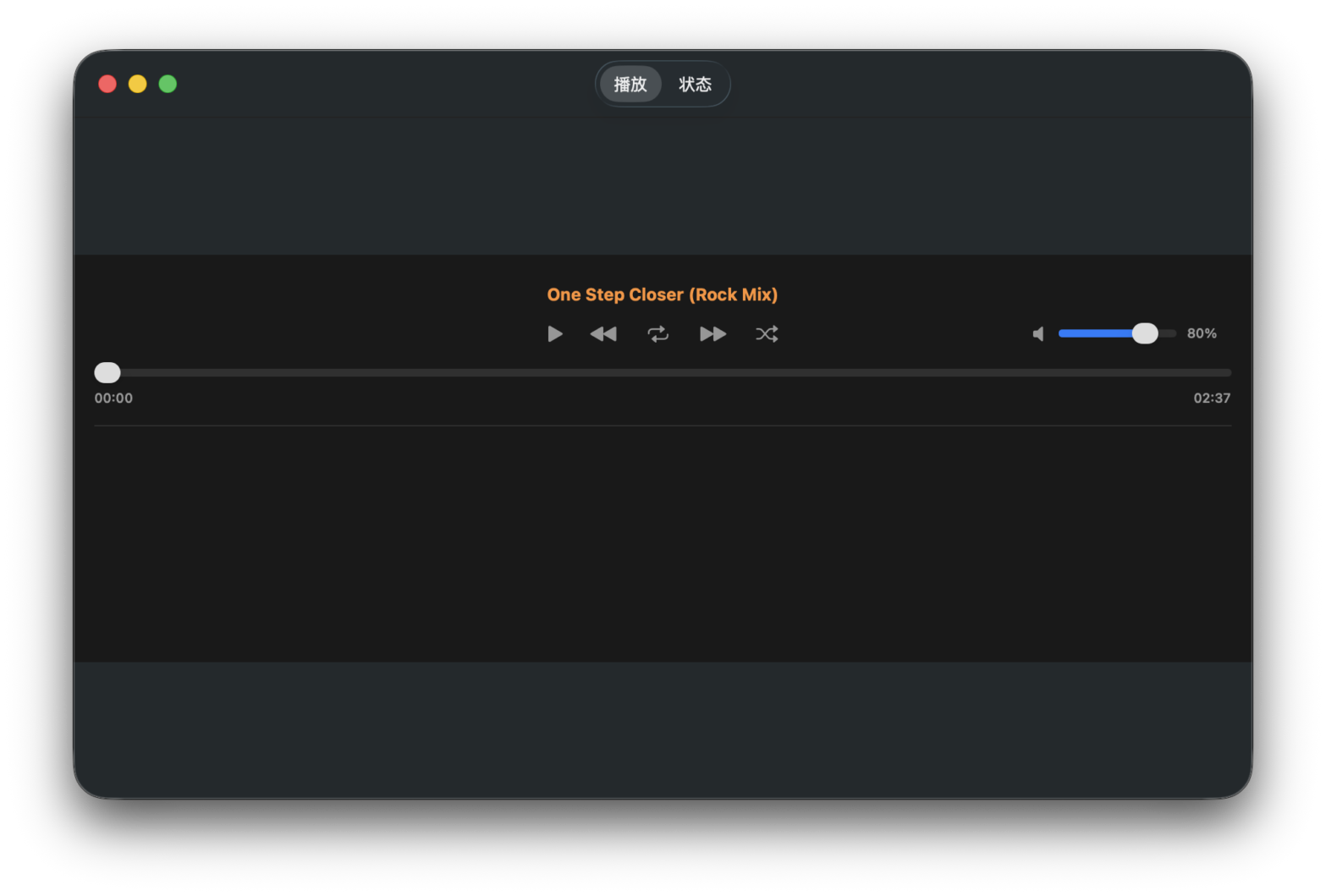
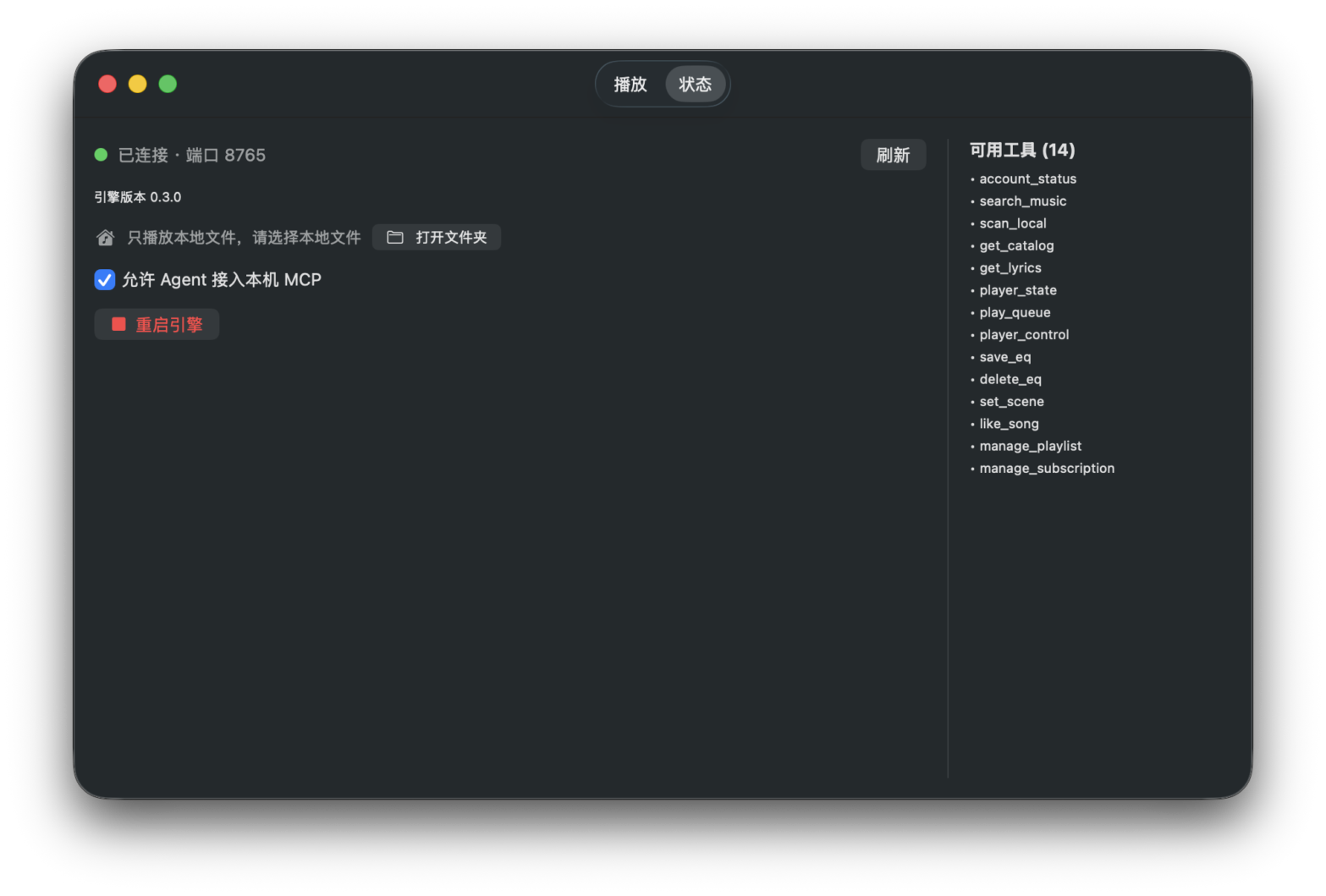
Two tabs, one window: Player for listening, Status for connection and settings. Shown below is MyGod 0.3.0. The screenshots show the Chinese interface — English and Japanese are also available.
MyGod is a local music player for macOS. Pick a folder and your collection is ready to play; flip one switch and AI assistants like WorkBuddy can search, skip and queue tracks for you. Your music is read straight from your Mac — what plays is always up to you.
No importing your music into a library, and no new set of controls to learn just to play a song.
Open the app, click "Open Folder" and choose where your music lives. MyGod reads the files in place and leaves your originals untouched.
Turn on "Allow Agent to connect to local MCP" in Status, and assistants like WorkBuddy can search, play and manage the queue for you.
Track title, previous / next, pause, repeat, shuffle, progress and volume — all in a single window.
Whether the engine is connected, its version, the available capabilities, and "Open Folder" to switch music directories any time.
The app only reads the folder you chose, in read-only mode; the current release plays local files only and makes no network calls.
Simplified Chinese, English and Japanese interfaces; other languages fall back to English. Track, artist and album names stay as they are.
Together these 14 capabilities cover the whole path from finding a track to shaping the sound the way you like it. They're not a developer API list — every one of them is about listening: finding music, queuing it, playing it, reading lyrics, and tuning the sound.
Register a local folder, search by title or artist, open album and playlist pages; whether a track can play is shown right in the results.
Drop in a set of tracks, a whole album or a playlist; shuffle, repeat-all and repeat-one are one tap away.
Play / pause / previous / next / jump to any track / seek / volume — several actions can be applied at once.
Timed lyrics, translations and word-by-word lyrics; plus a snapshot of what's playing, what's next and which sound settings are on.
A 10-band EQ, built-in presets, your own presets, night mode, loudness normalization, bass/treble enhancement — detailed below.
Likes, playlists and scenes are coming in later releases, so "just play something I like" keeps getting better.
Volume is only the beginning. MyGod also lets you decide how the music actually sounds: from a ten-band equalizer to a late-night mode, and once you've got it right you can save it as your own preset — it'll still be there next time you open the app. All of it exists purely for listening, not for configuration or development.
| What you want | How to get it |
|---|---|
| Punchier bass, tighter drums | Pick the "Bass" or "Extra Bass" preset, or nudge 31 / 63 / 125 Hz up a little |
| Clearer vocals, less mud | Try the "Pop" or "Mid" preset, or lift 1–4 kHz |
| Late-night listening without waking anyone | Turn on Night mode: it tames dynamics so quiet parts stay audible |
| One track loud, the next one quiet | Turn on Loudness normalization to even out the difference |
| Thin laptop speakers, dull headphones | Use the "Speaker" preset, or add bass / treble enhancement separately |
| You've found your perfect sound | Save it as a named preset — it survives restarts; delete it to fall back to the built-in one |
Two tabs, one window: Player for listening, Status for connection and settings. Shown below is MyGod 0.3.0. The screenshots show the Chinese interface — English and Japanese are also available.
Tap through it yourself, or hand the song-finding to an AI assistant — no settings to change and no commands to remember.
WHAT YOU DO
WHAT YOU DO
The MyGod you can download today plays local files only and makes no network calls. An edition with online music sources is in preparation and coming soon.
| Current release (available now) | Online edition (coming soon) | |
|---|---|---|
| Music sources | Local files only | Planned: NetEase Cloud Music / QQ / Migu / Kuwo, alongside local files |
| Network | No network access | Streaming online sources will require a connection |
| Capabilities for AI | 14 (local only) | 19 expected |
| When | Available to download now | Coming soon |
Current release 0.3.0. It ships as a dmg — open it, drag, and you're done.
Releases are published on the GitHub repository. Once you have the dmg, follow the three steps below.
Open the downloaded dmg and drag the MyGod icon onto the Applications shortcut.
The current build isn't notarized by Apple, so macOS will stop it once. Go to System Settings → Privacy & Security and click "Open Anyway"; after that, double-clicking works normally.
Open the app, click "Open Folder" and choose your music directory. To let AI help, switch it on in the Status tab.
If it still won't open, run the command below in Terminal and double-click again.
xattr -cr /Applications/MyGod.app
The current build isn't notarized by Apple, so Gatekeeper stops it once. Click "Open Anyway" in System Settings → Privacy & Security, or run xattr -cr /Applications/MyGod.app in Terminal and double-click again. You only need to do this once.
No. The app only reads the folder you chose, in read-only mode, and never modifies or copies your originals. The current release plays local files only and makes no network calls. Track, artist and album names are shown exactly as they are in your files.
Tick "Allow Agent to connect to local MCP" in the Status tab, then just tell an MCP-capable assistant like WorkBuddy what you want to hear. You can turn the switch off at any time; manual playback is unaffected.
Yes — it's in preparation. The online edition coming soon is planned to add NetEase Cloud Music, QQ, Migu and Kuwo, so local and online music can be used together. The version you can download today still plays local files only, with no network access.
Not yet. The current release supports Apple Silicon (M-series) Macs only; Intel support is planned.
Simplified Chinese, English and Japanese, following your system language; any other language falls back to English.
Something not working, a feature you'd like, or just a thought — send me an email. I read every one.